
Exploring Profile Insights
Overview of the Insights Tab on a SkillsEngine profile.

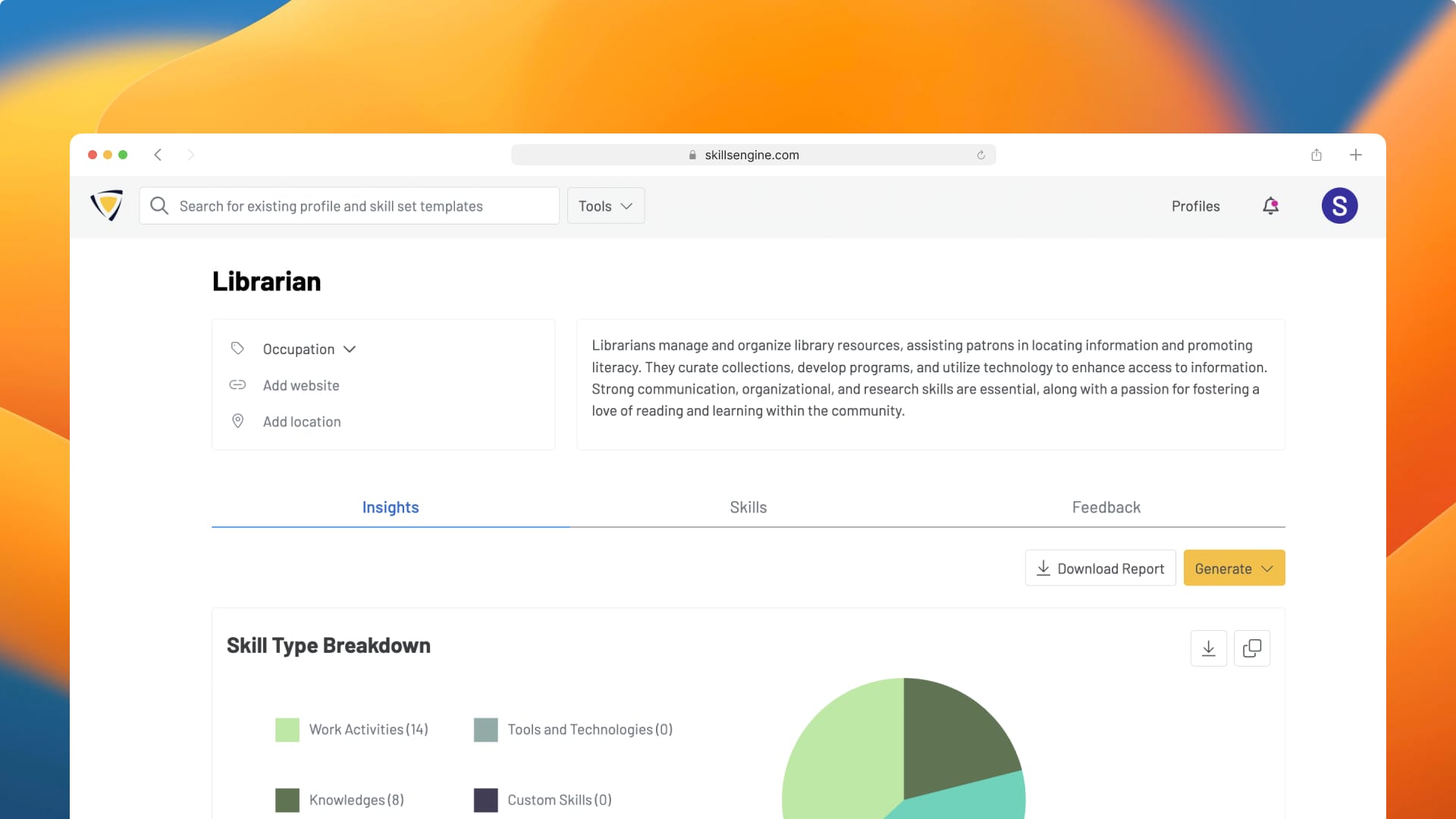
This guide will walk you through how to access and utilize the Insights Tab on each of your profiles.
Accessing the Insights Tab
To access the Insights Tab on a profile, navigate to any of your profiles via the Profiles dashboard.
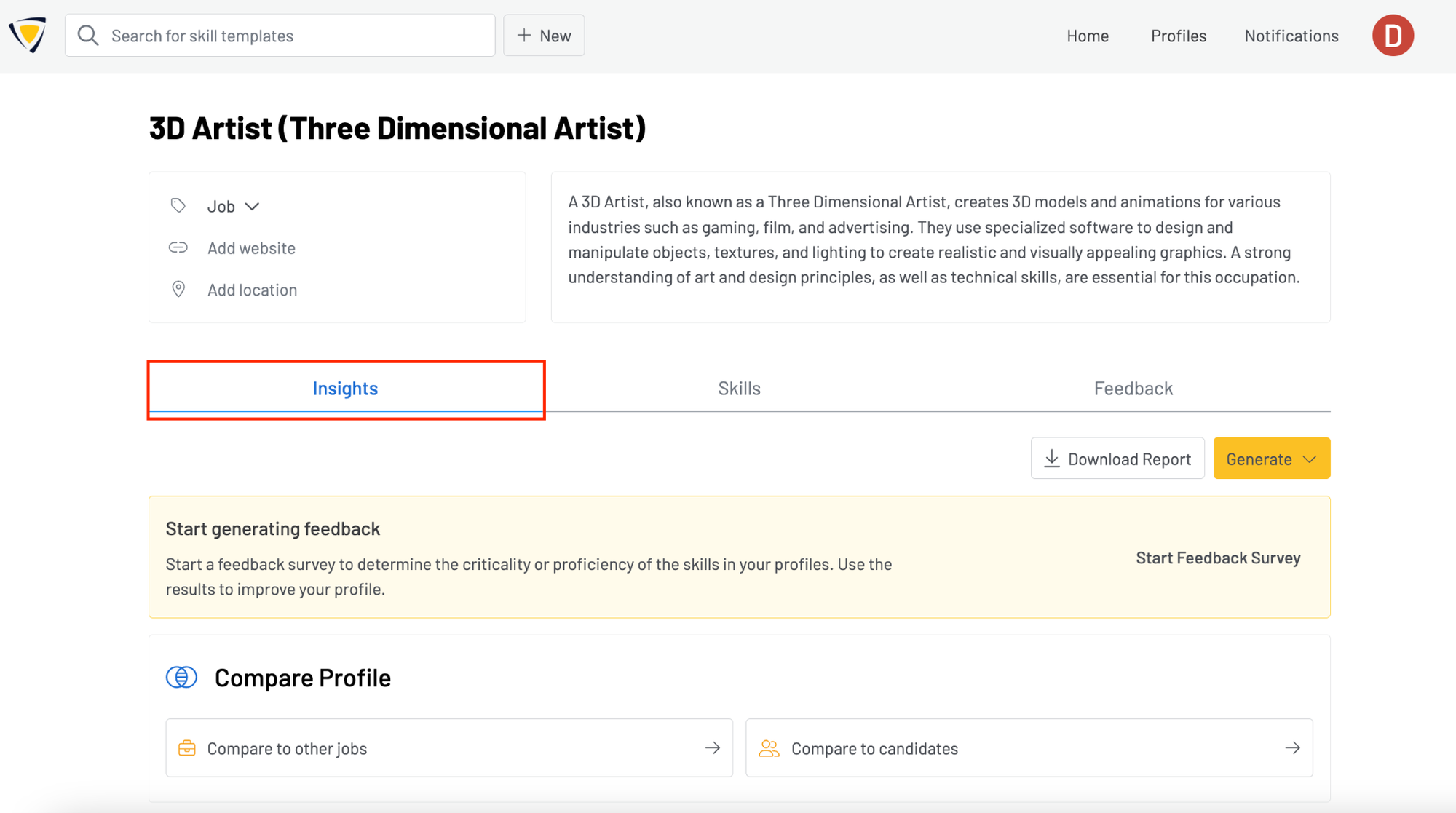
Understanding the Insights Tab
The Insights Tab provides several high-level insights about your profile.
Compare: The Compare module provides quick access to the Compare workflow directly from your profile.
Using the “Compare to other jobs” or “Compare to other credentials”, you can begin a comparison with the current profile automatically selected as your starting point. Depending on the profiles you compare, you’ll be guided through the appropriate comparison workflow, such as Workforce Alignment or Curriculum Alignment.

Skill Type Breakdown: An overview of your profile composition by skill type.

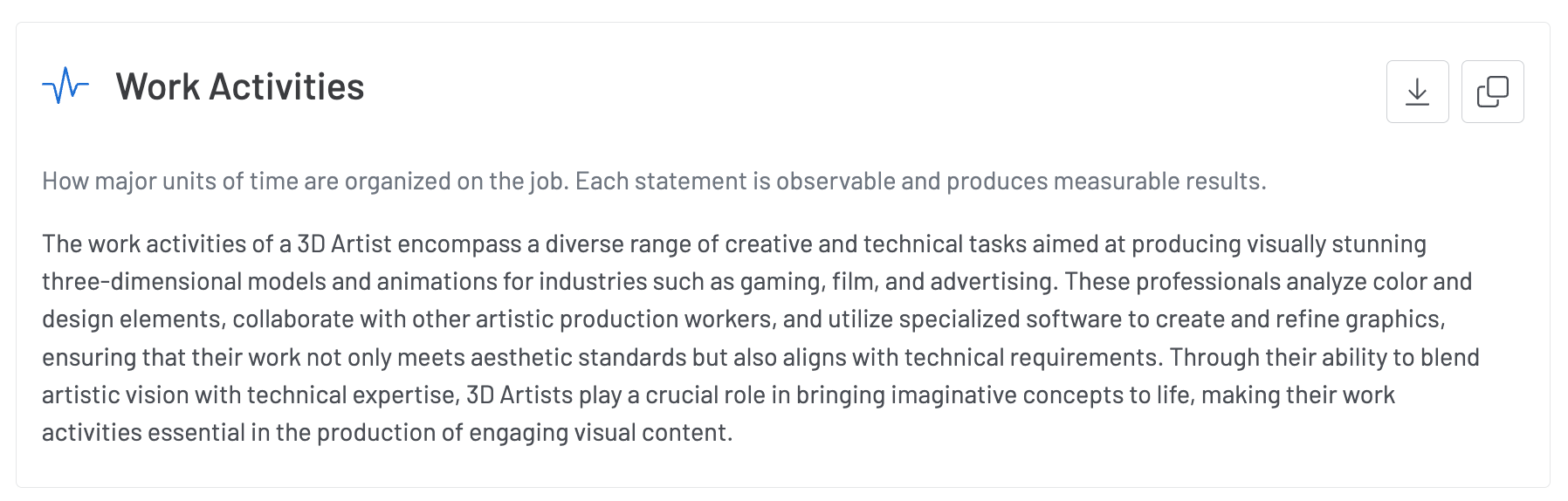
Work Activity Summary: An AI generated summary highlighting the primary work activities represented in your profile. This overview helps you quickly understand the types of work your profile best supports.
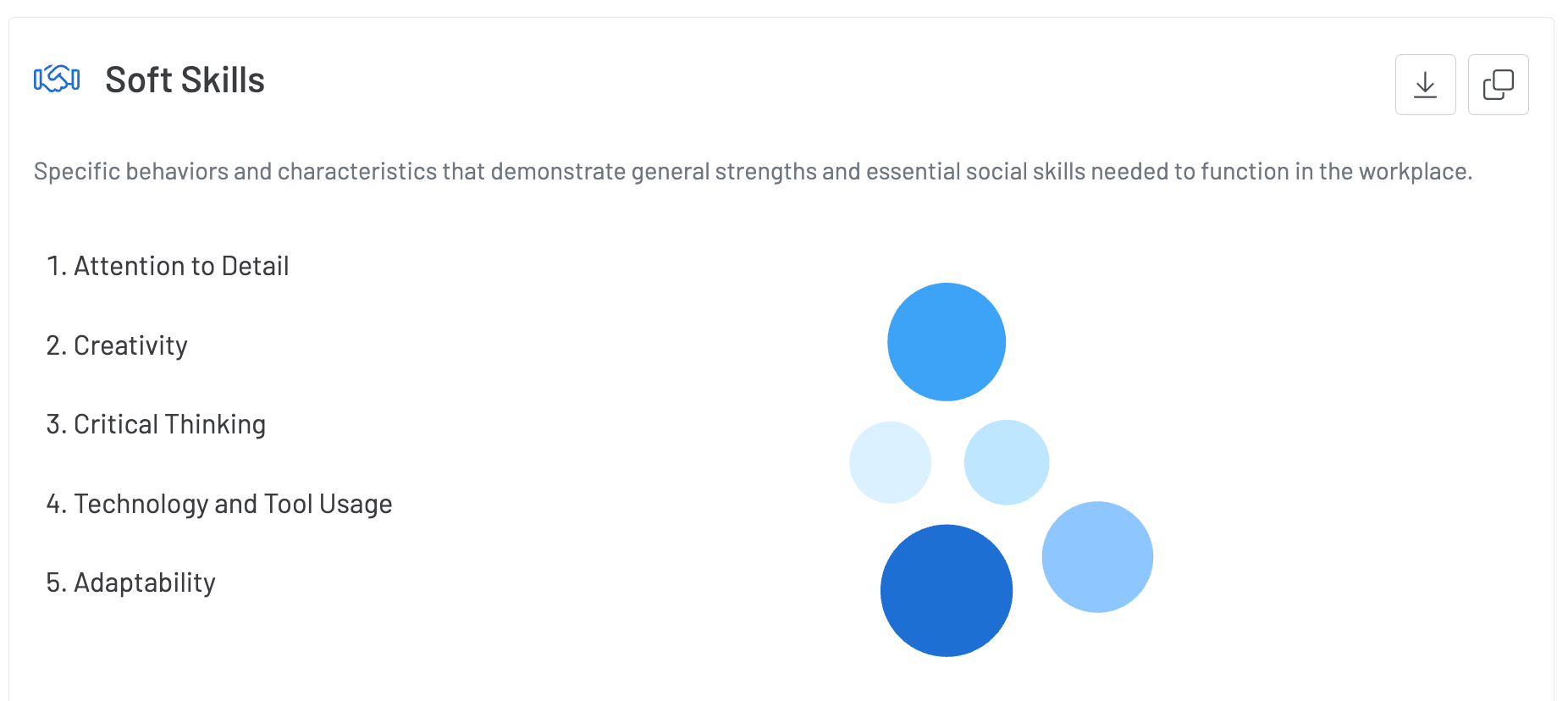
Top Soft Skills: A visual list and bubble chart highlighting the most prominent soft skills within your profile, making it easy to identify the interpersonal and professional competencies most strongly represented.
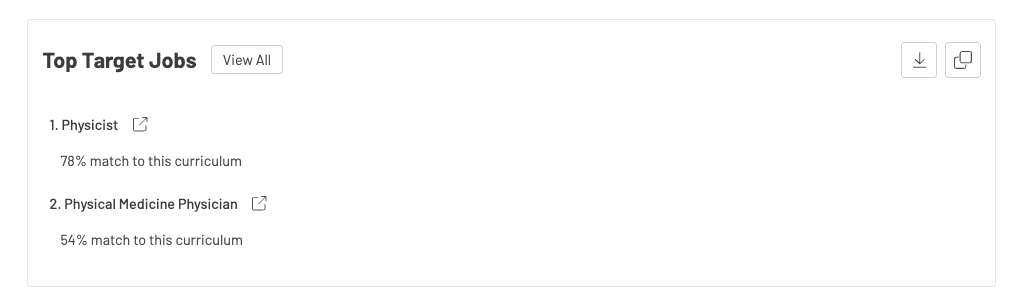
Top Target Jobs (Curriculum and Credential Profiles): For curriculum and credential profiles, the Top Target Jobs module highlights occupations that best align with the skills in the profile.
Once a target job is added in the Target Jobs tab, this section will display the top matching jobs along with the percentage match between the target job and the curriculum or credential profile.
This helps educators and program designers quickly evaluate how well a curriculum or credential prepares learners for specific jobs and occupations.
Skill Set Summary (Job and Individual Profiles): AI-generated overview of the top 5 skill sets in the profile with brief summaries of each.

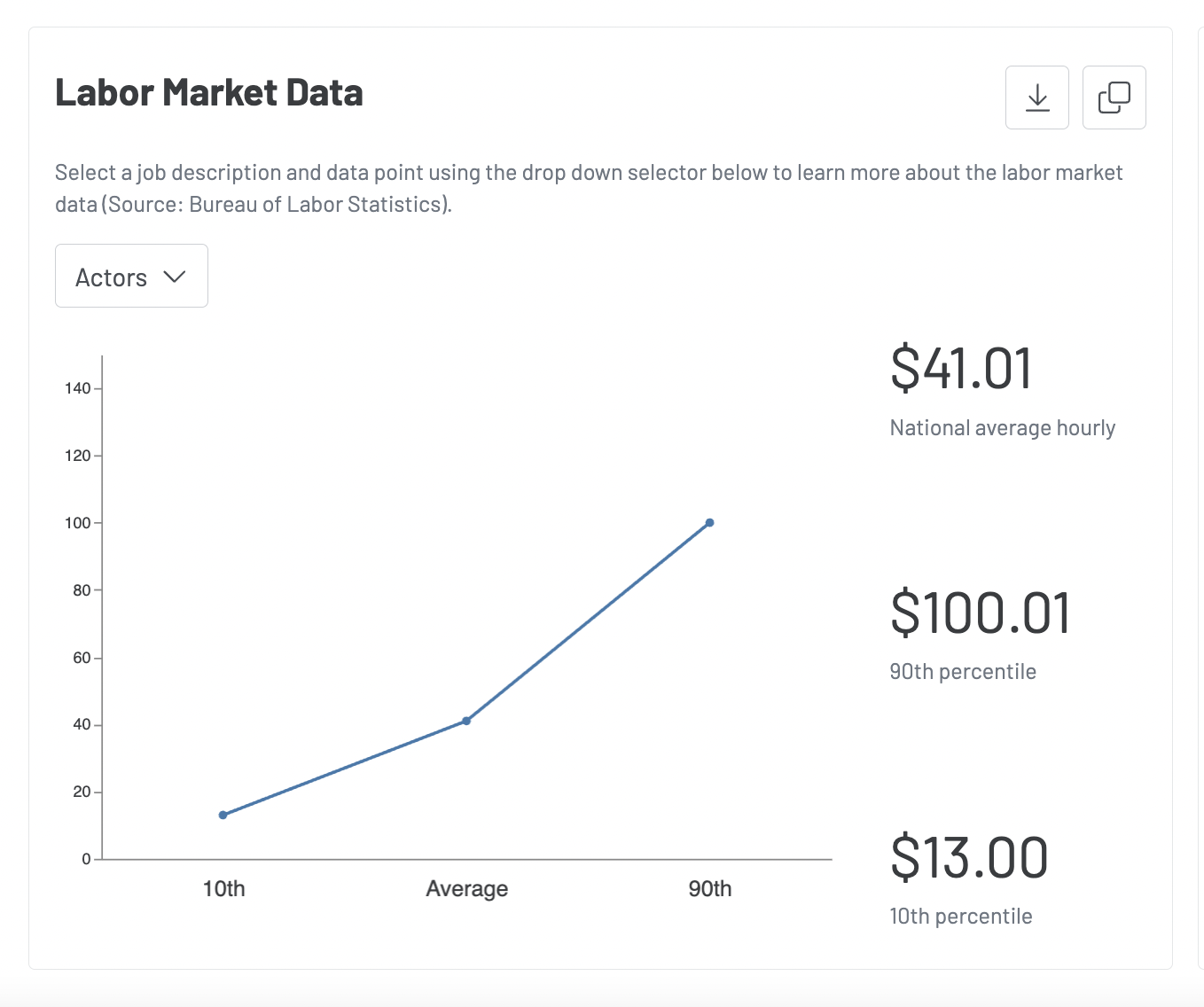
Labor Market Data: Average salaries for occupations related to or most relevant to the profile based on the profile's title and description.
NOTE: The insight is sourced from the federal database of the Bureau of Labor Statistics.
Related Profiles: A list of SkillsEngine profile templates representing related jobs based on the title and description of your profile.

Downloading Your Insights Report
To download or print the insights report:
Step 1: On the top of the Insights page, locate and click the 'Download' button.
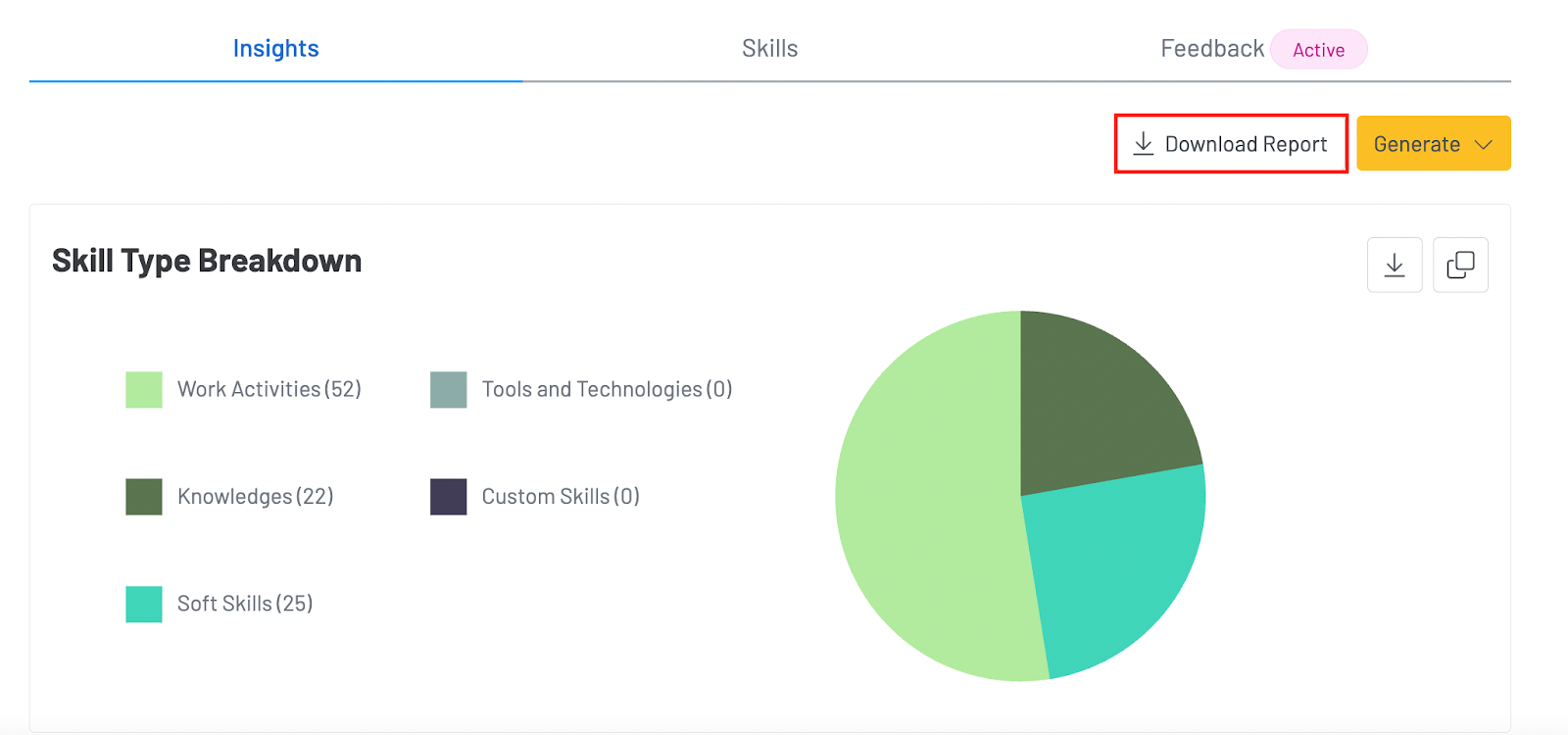
Step 2: Click "Print Insights Report" and follow your system's standard process to print the report or save it as a PDF.

For more detailed information about managing your profile and insights, visit our Support Center.
Updated 07/30/2026, 3:00pm CST