
Compare Profiles
Learn how to compare and analyze multiple skill profiles using the Compare Profiles feature to identify overlaps, gaps, and alignment with ease.

Compare Profiles
Discover how to compare two or more skill profiles efficiently using the Compare Profiles feature. This document will guide you through accessing and utilizing this functionality to analyze how different profiles align, identify skill gaps, and explore opportunities for improvement.
Accessing the Compare Profiles Page
There are two ways to start a comparison.
Option 1: From the Navigation Bar
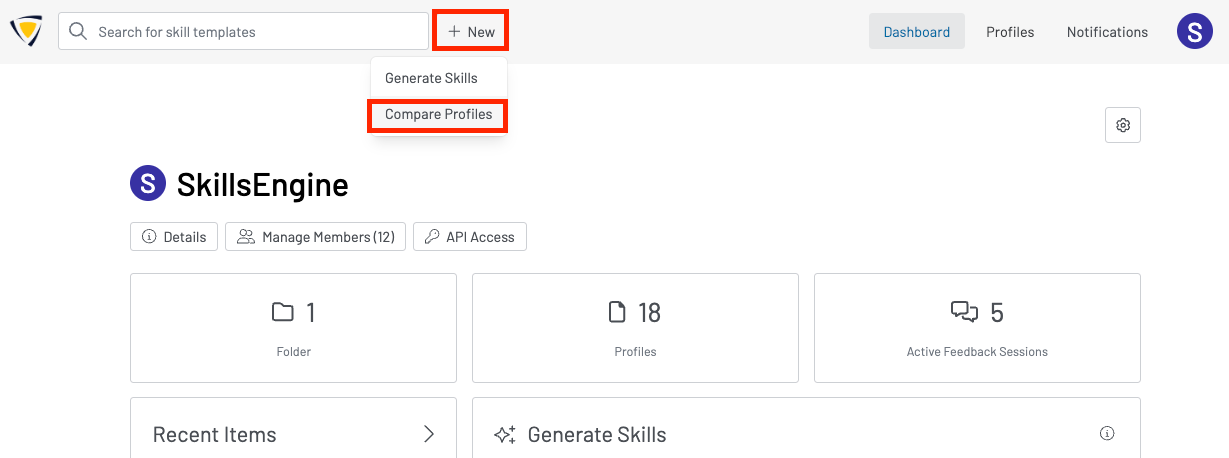
Step 1: From any page in the platform, locate the "+ New" button in the navigation bar.
Step 2: A dropdown menu will appear. Select "Compare Profiles."
Option 2: From a Profile's Insights Tab
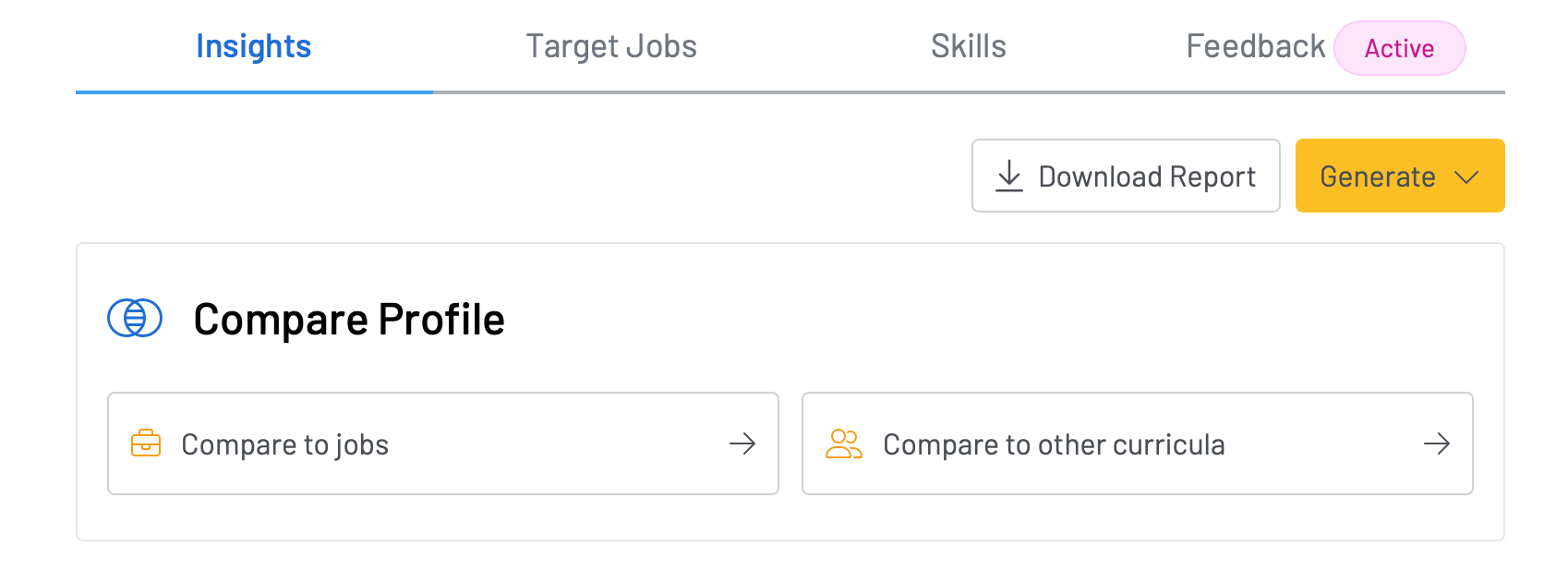
You can also begin a comparison directly from a profile's Insights tab.
Step 1: Open any profile and select the Insights tab.
Step 2: At the top of the tab, locate the Compare Profiles module and click Compare Profiles.
The selected profile will automatically become your primary profile, allowing you to continue through the comparison workflow with ease.
Selecting Profiles for Comparison
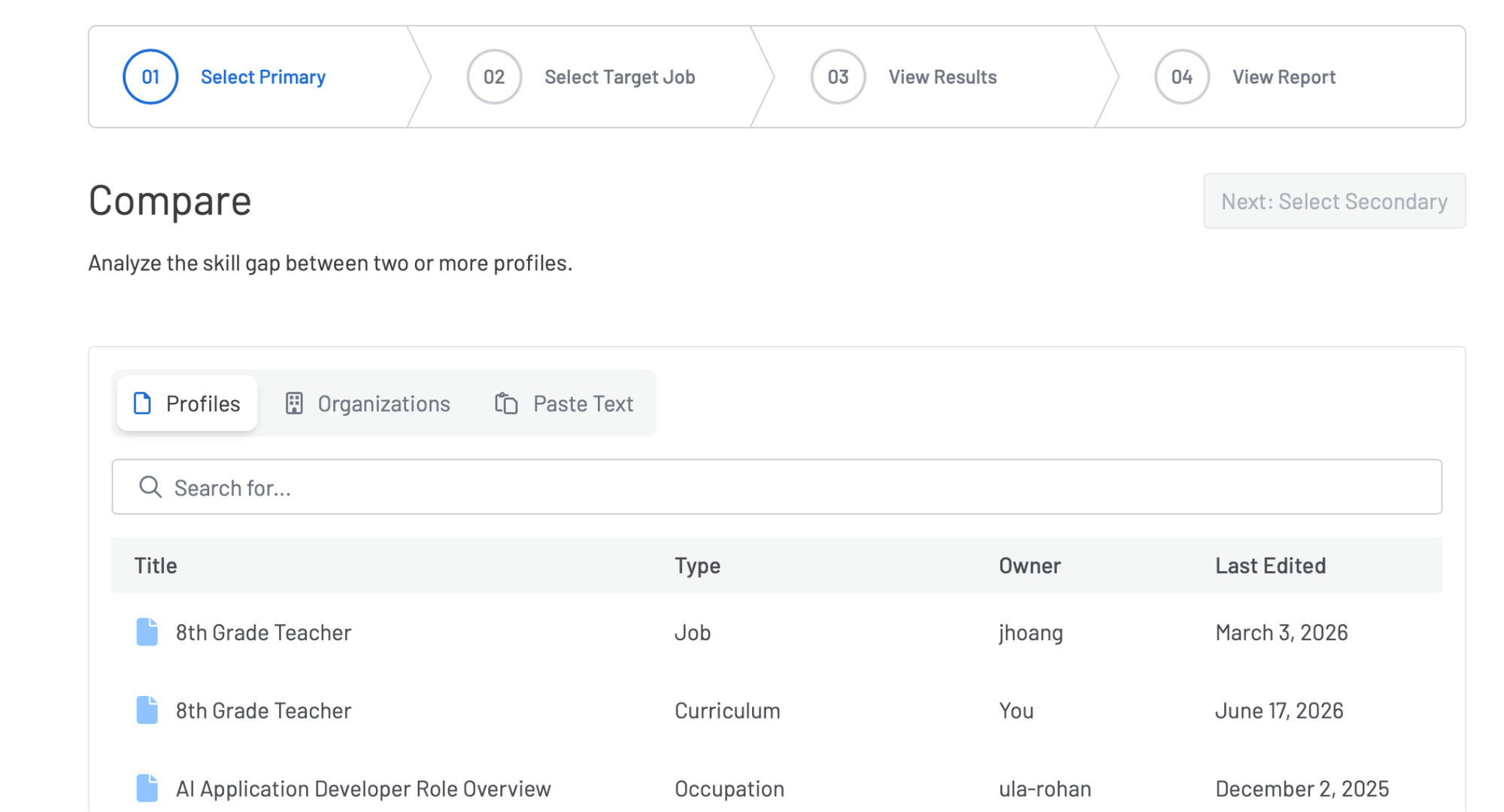
The Compare Profiles workflow uses a step-by-step guided process to help you select profiles and review your results. Throughout the workflow, a progress indicator at the top of the page shows your current step and what comes next.
Depending on the types of profiles you select, the platform will automatically guide you through the appropriate comparison workflow.
Step 1: Select a Primary Profile
On the first page, you’ll be prompted to select your primary profile.
You can choose from:
- Profiles created within your organizations
- Profiles available in the Organizations tab that includes public profiles shared across the SkillsEngine platform
- A newly generated profile using the Generate Skills tool by a simple text or uploading a document- such as a resume, job post, or course description- to automatically convert it into a profile.
If you create a new profile during this step, you will have the option to save the profile to your account or use it only for the comparison.
Step 2: Select Secondary Profiles
After selecting your primary profile, you'll be prompted to choose a secondary profile for comparison.
Secondary profiles can come from:
- Your organizations
- Public profiles available under the Organizations tab
- A newly generated profile using the Generate Skills tool
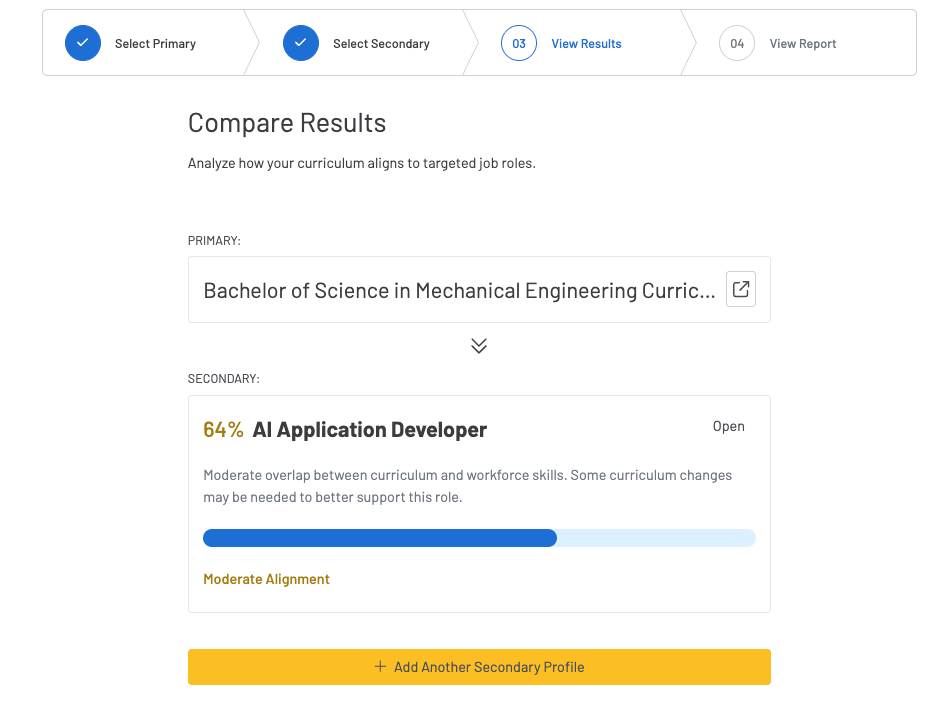
After selecting a secondary profile, click Next to continue to the Compare Results page.
If you'd like to compare your primary profile against additional profiles, click the Add Another Secondary Profile button at the bottom of the Compare Results page. This allows you to add another secondary profile while keeping your original primary and secondary profiles selected.
Review Comparison Results
The Compare Results page displays each comparison you’ve created.
Each comparison includes a preview of the compare report, allowing you to quickly see the overall results before opening the full report.
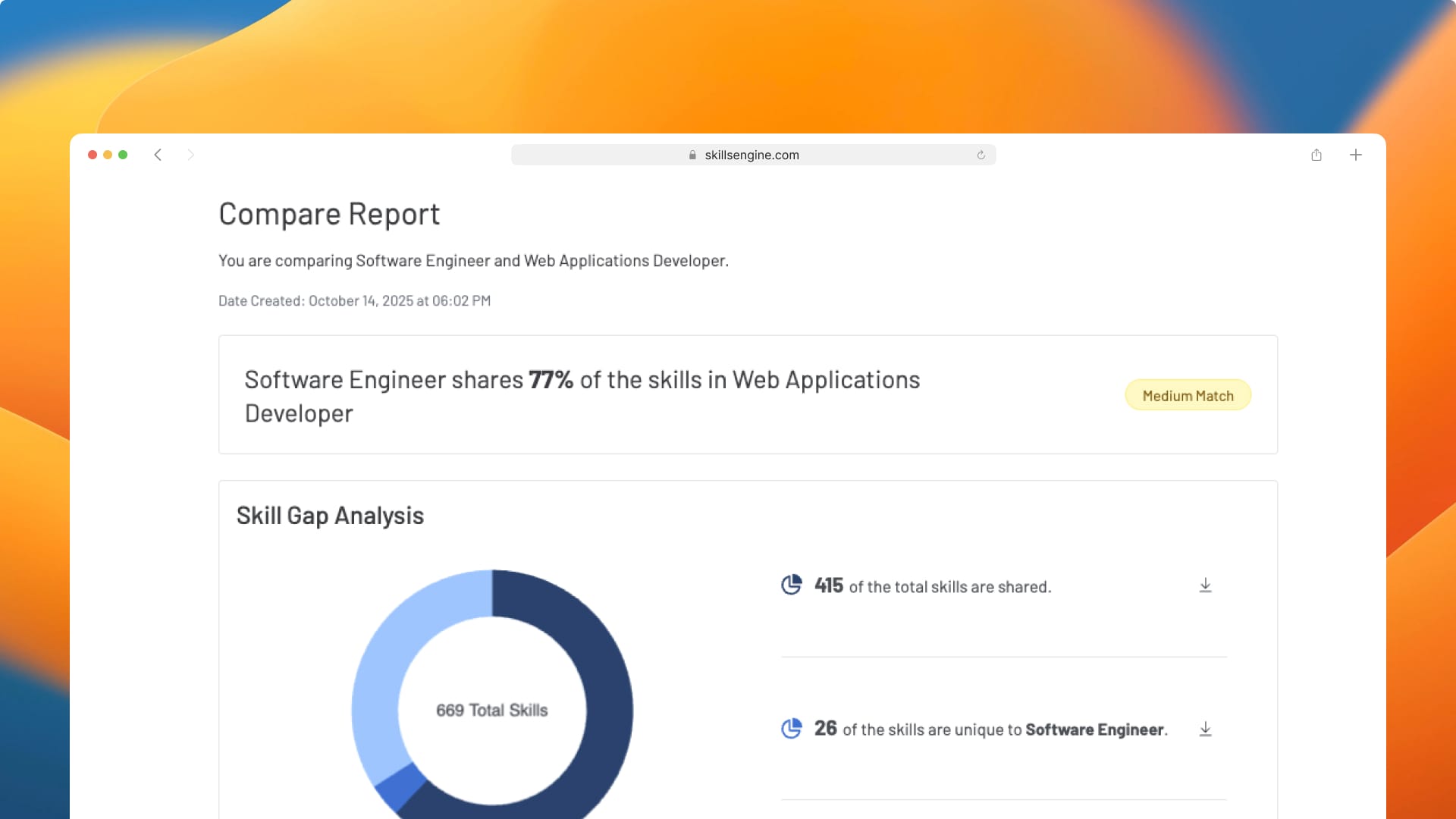
For each comparison, you’ll see an Alignment overview showing the percentage of skills shared between the primary and secondary profiles. An alignment badge indicates the overall level of alignment between the two profiles. Click Open on any comparison to view the full compare report.
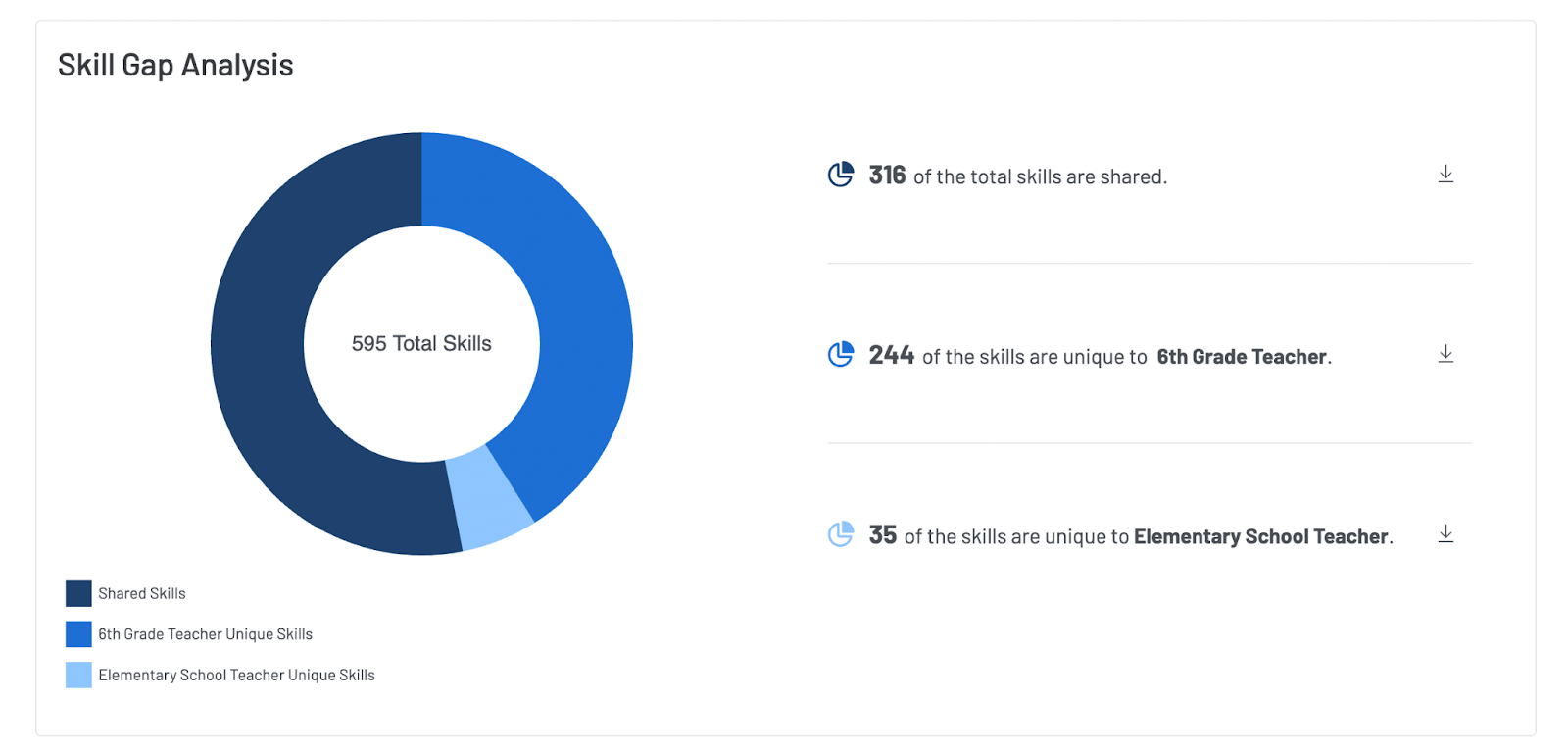
Within the compare report, you’ll find a Skill Gap Analysis featuring a visual chart that breaks down:
- Shared skills between both profiles
- Skills unique to the primary profile
- Skills unique to the secondary profile
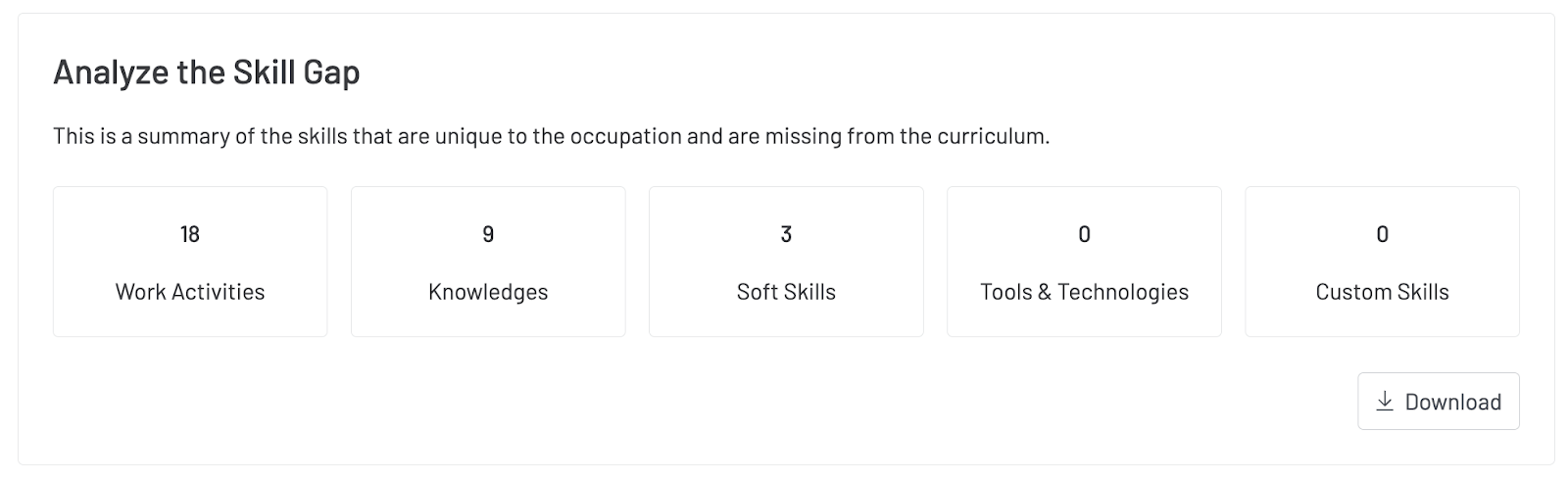
For Curriculum-to-Occupation and Credential-to-Occupation comparisons, an additional Analyze the Skill Gap module will appear.
This section highlights the skills present in the occupation but missing from the curriculum or credential profiles, helping educators and program designers identify opportunities to better align learning outcomes with workforce needs.
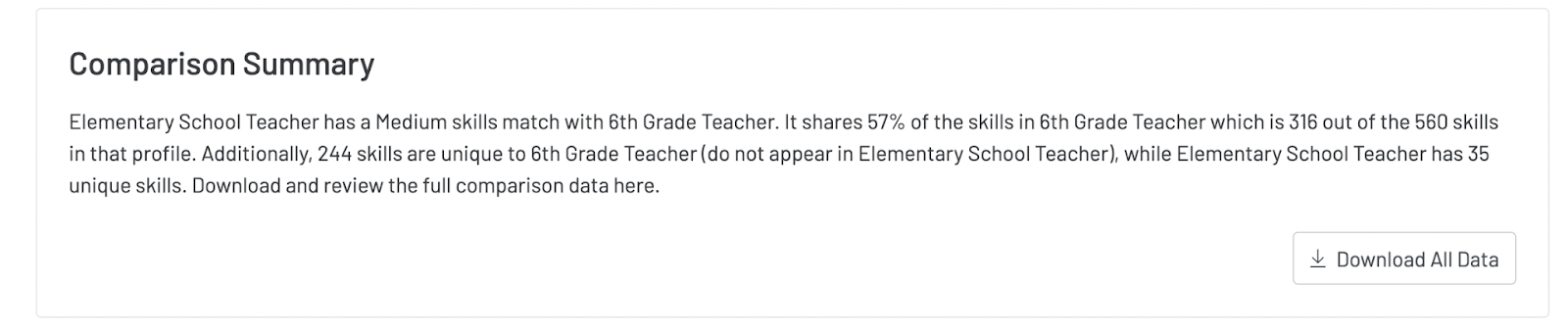
Following the analysis, you will see the Comparison Summary and Suggestions for Next Steps.
These sections highlight key takeaways from the comparison and provide guidance on how to act on the results, such as strengthening specific skill areas or improving alignment with a target occupation.

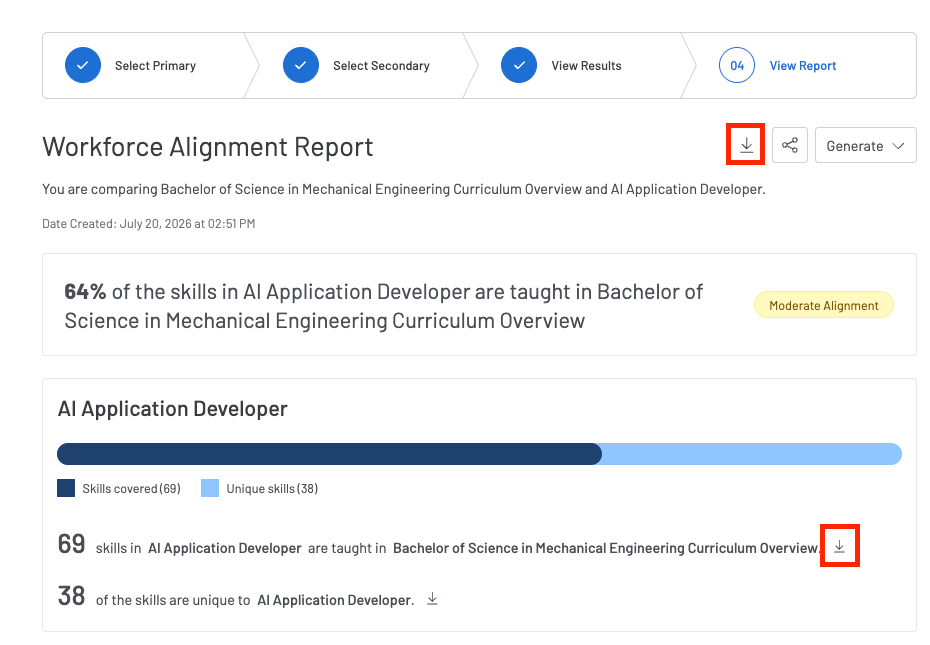
Downloading Your Comparison Data
If needed, you can export the comparison data for further review or sharing.
Simply click the Export button at the top of the compare report to download the full data set as a CSV file onto your computer.
In addition, download buttons are available throughout the report, allowing you to export specific sections—such as shared skills, unique skills, or all skills—individually as CSV files.
*NOTE: The Compare feature is actively evolving. We welcome your feedback as we continue improving the experience and expanding comparison capabilities across the platform.
Updated 07/20/2026, 3:05pm CST