
Validating Profiles with Feedback
How to guide for using SkillsEngine to validate your skill profiles.

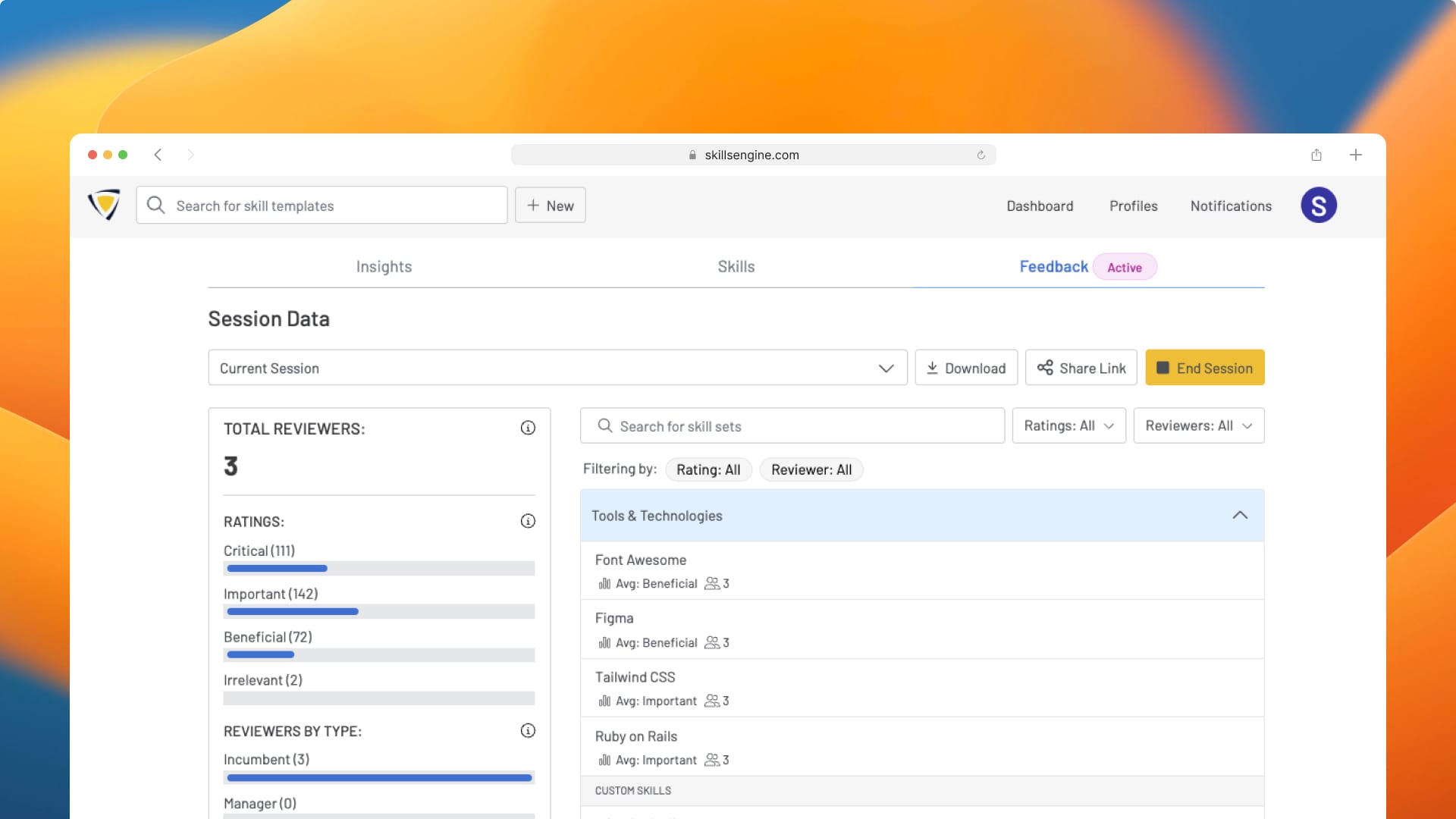
The SkillsEngine Feedback feature allows you to send out Validation Surveys to determine the criticality of the skills in your profiles. You can then use the gathered results to improve the accuracy and relevancy of each of the skills in your profiles.
This article provides an overview for using this feature including a description of the Feedback tab on a profile, the basic flow for running a Feedback session as a profile owner, and the process for navigating a Validation Survey.
Understanding the Feedback Tab
The Feedback tab represents a comprehensive overview of the validation reviews you've received on a specific profile. It includes a breakdown of criticality ratings, reviewer types, and the top locations or your reviewers. It also provides a detailed analysis for each skill, showcasing the number of reviewers and the average ratings received for each. These can be filtered by ratings and reviewer type. This feature allows you to gauge the perceived strength and areas for improvement of individual skills based on collective feedback.
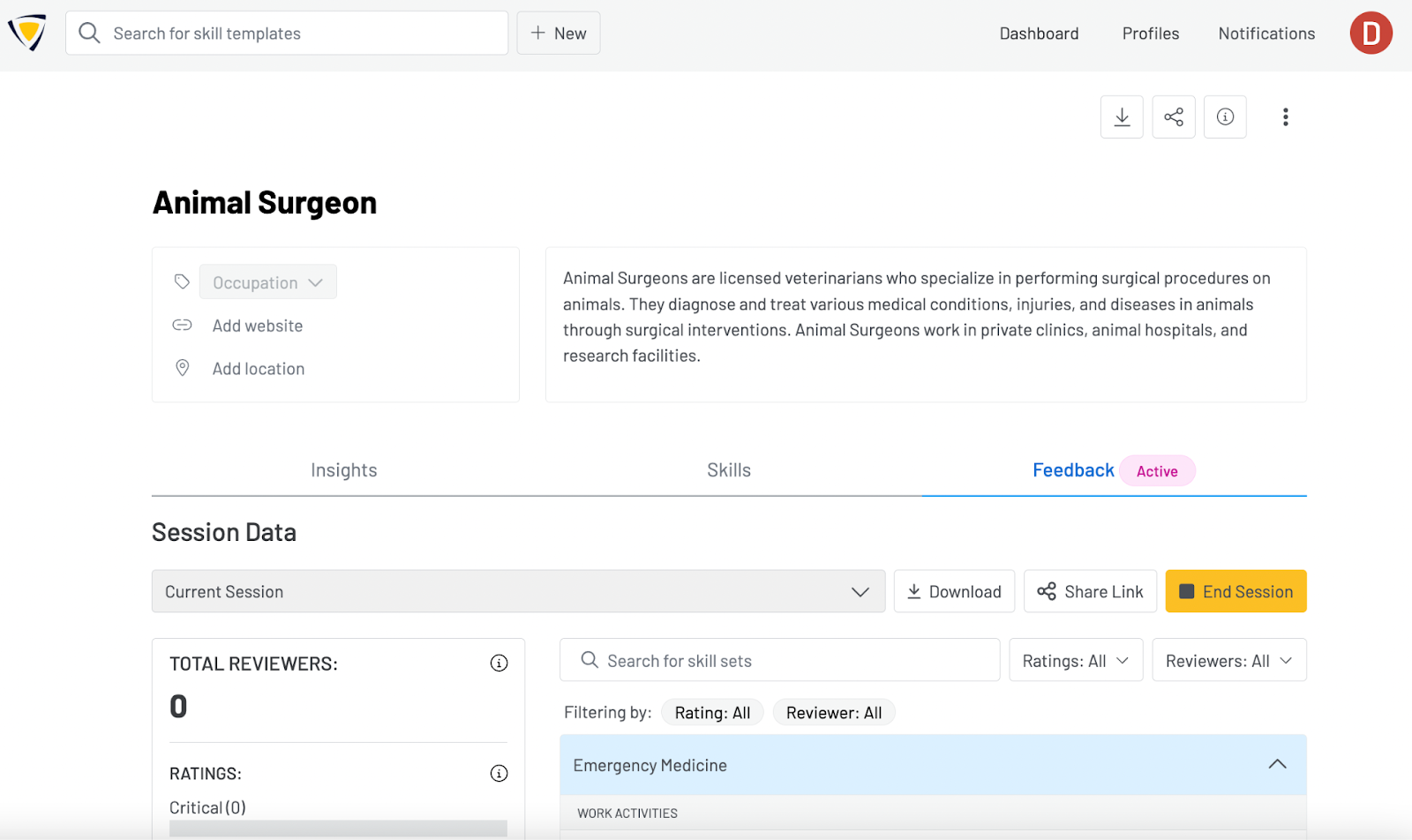
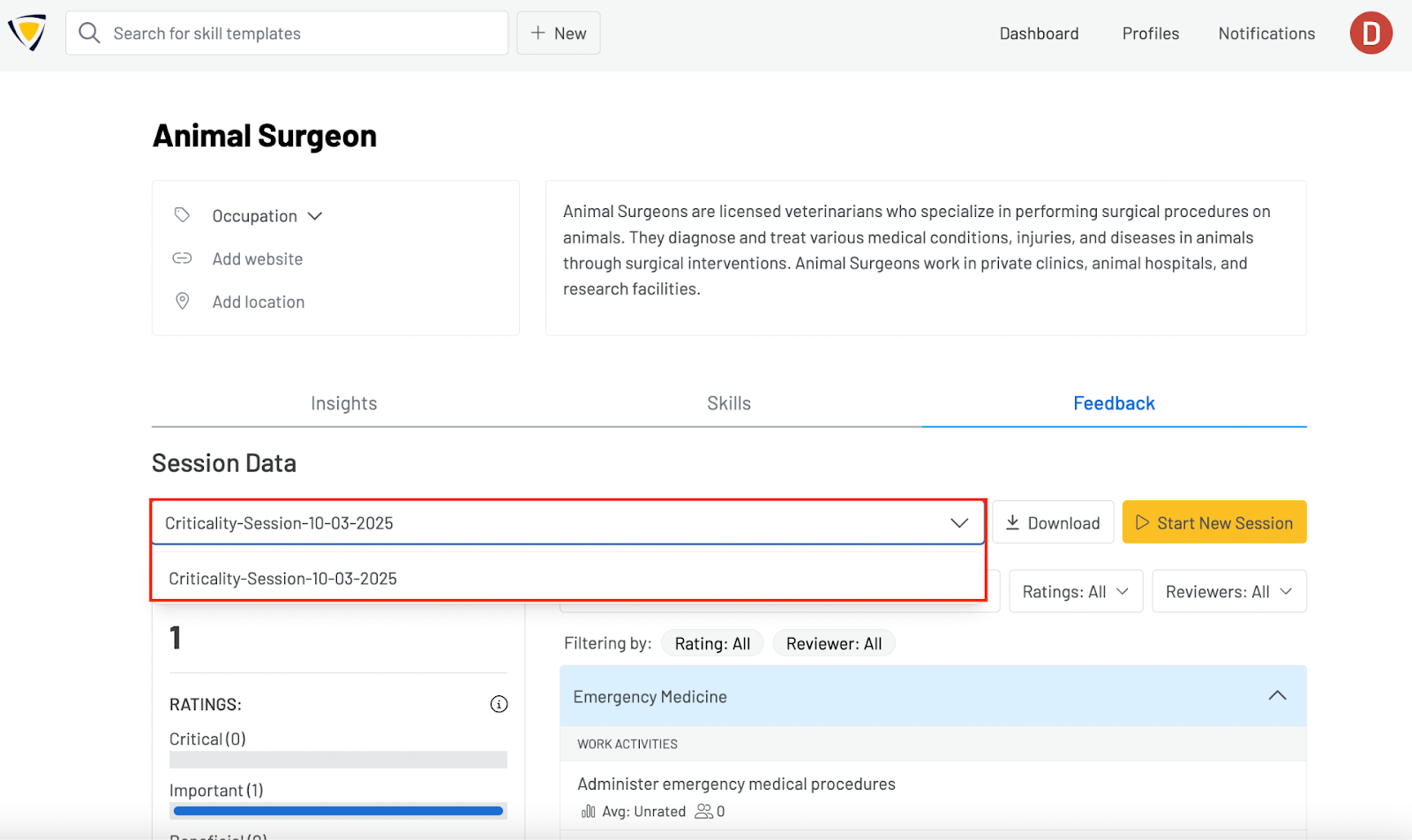
Within this tab, you can also view and download results from previous validation surveys run on the profile. To select which you would like to see, simply click the dropdown with the current session name and select which session date you would like to see. If you ran multiple sessions in a single day, a number signifier after the date will show the order of those sessions.
Accessing and Managing Feedback
Follow these simple steps to access and manage feedback on your profile:
Step 1 — Access Your Profile: Log into your SkillsEngine account. You can create a new profile or select an existing one to proceed.
Step 2 — Navigate to Feedback: Within your profile you’ll find three main tabs: Insights, Skills, and Feedback. Click on the Feedback tab.
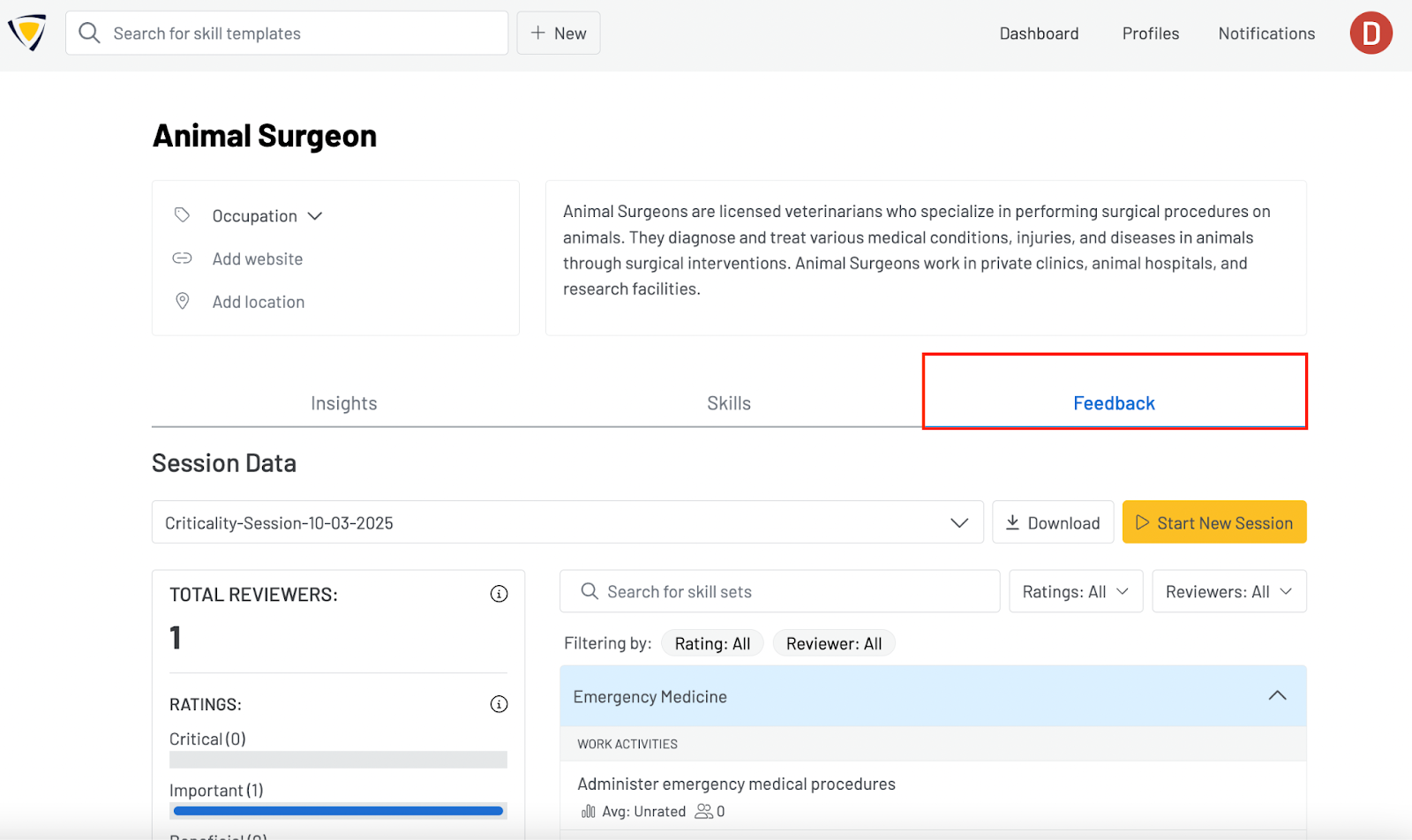
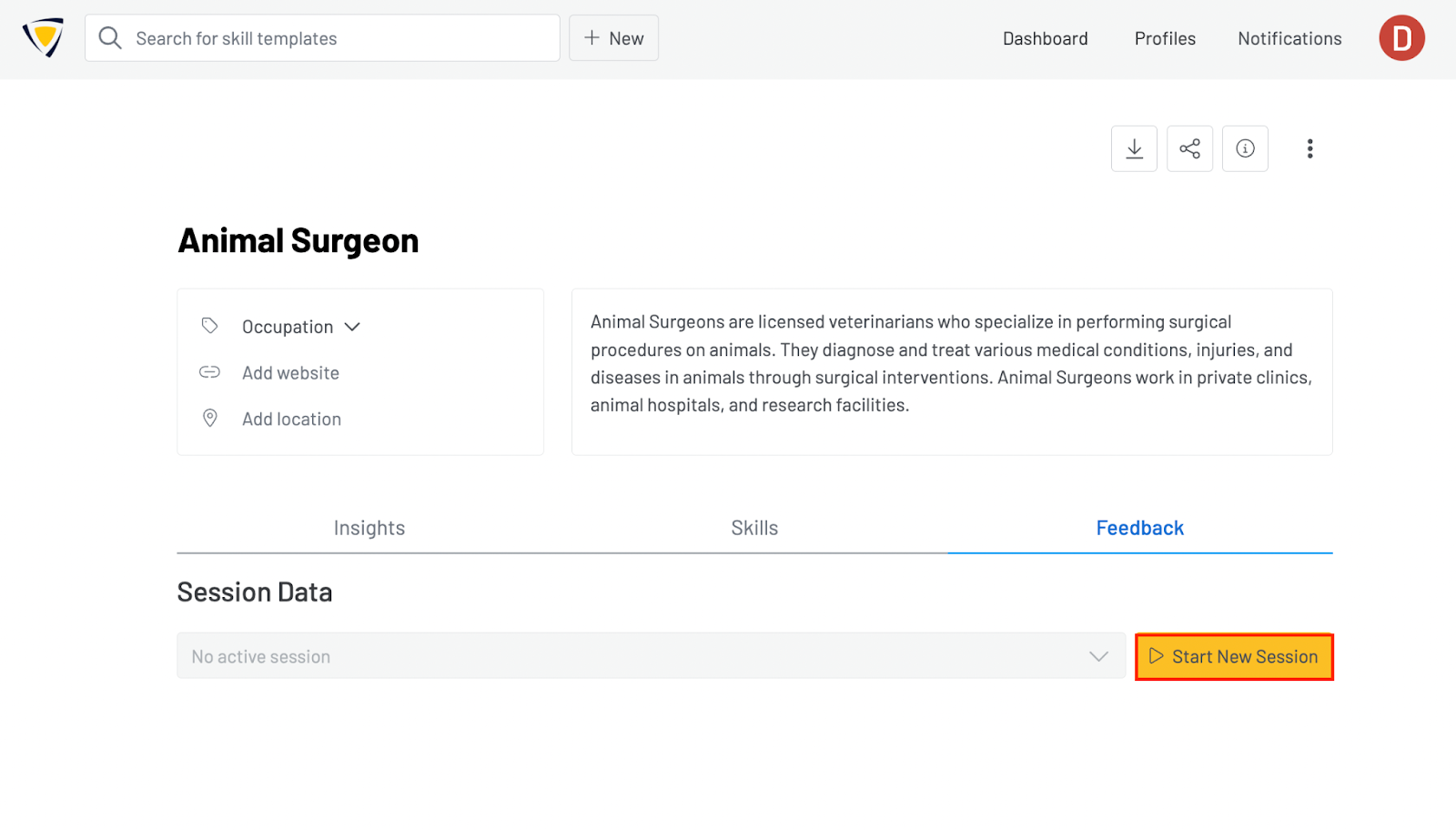
Step 3 — Initiate a New Feedback Session: If you are the profile owner, start a new feedback session by clicking the yellow "Start New Session" button located at the top right corner under the feedback tab label.
Note: Your profile cannot be edited during an active feedback session.
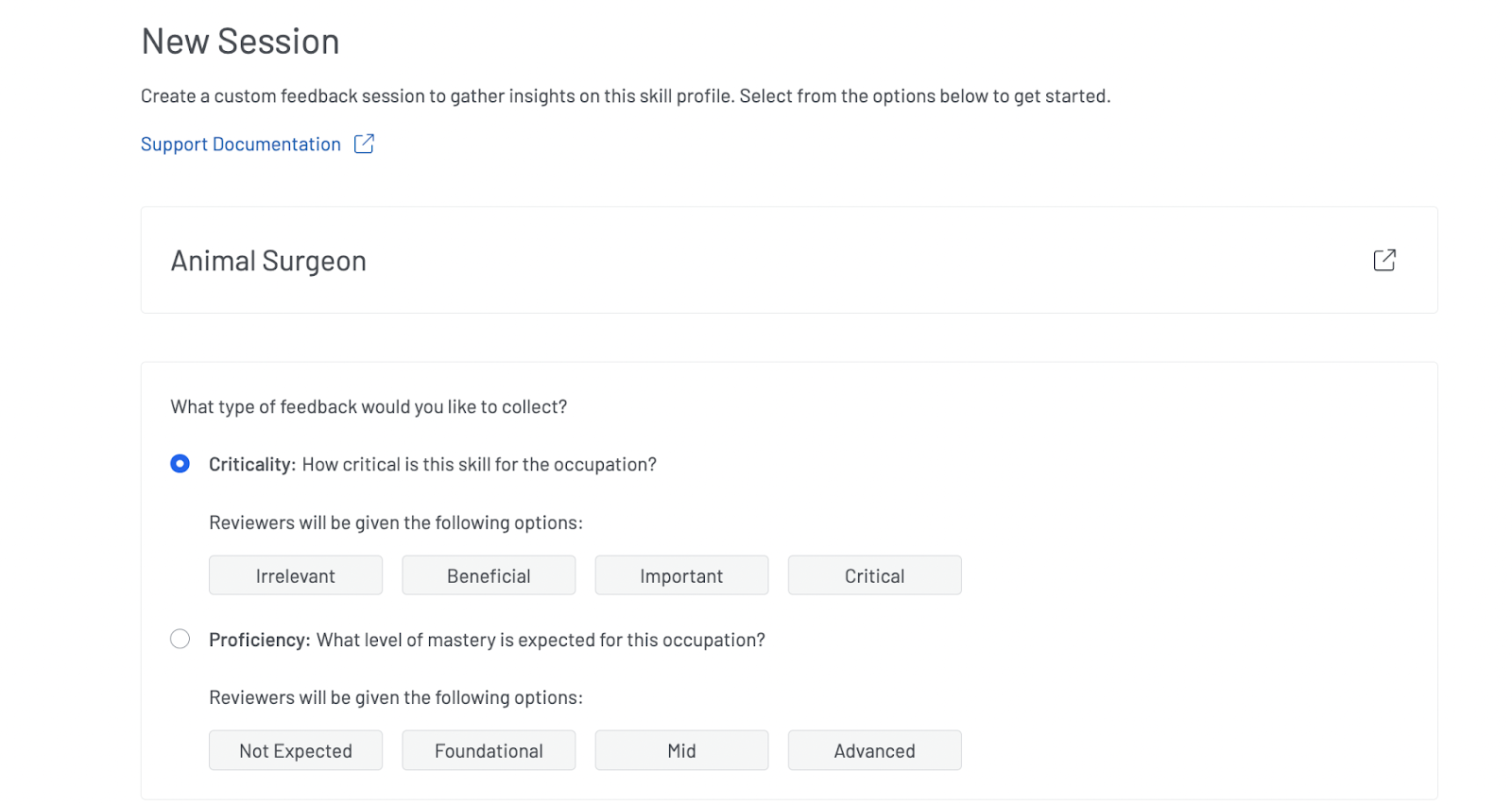
Step 4 — Start the Session: When you begin a Feedback Session, you’ll be taken to a new page. On this page, you’ll be asked to:
- Select the feedback type you want to collect (Proficiency or Critically)
- Choose which skill types you want displayed to reviewers during the session
Once your selections are made, click “Start Session” to launch the session and begin gathering new feedback.
Step 5 — Sharing for Feedback: To share your session, click on the “Share Link” button. This allows you to copy a link to share with others to invite them to review your profile.
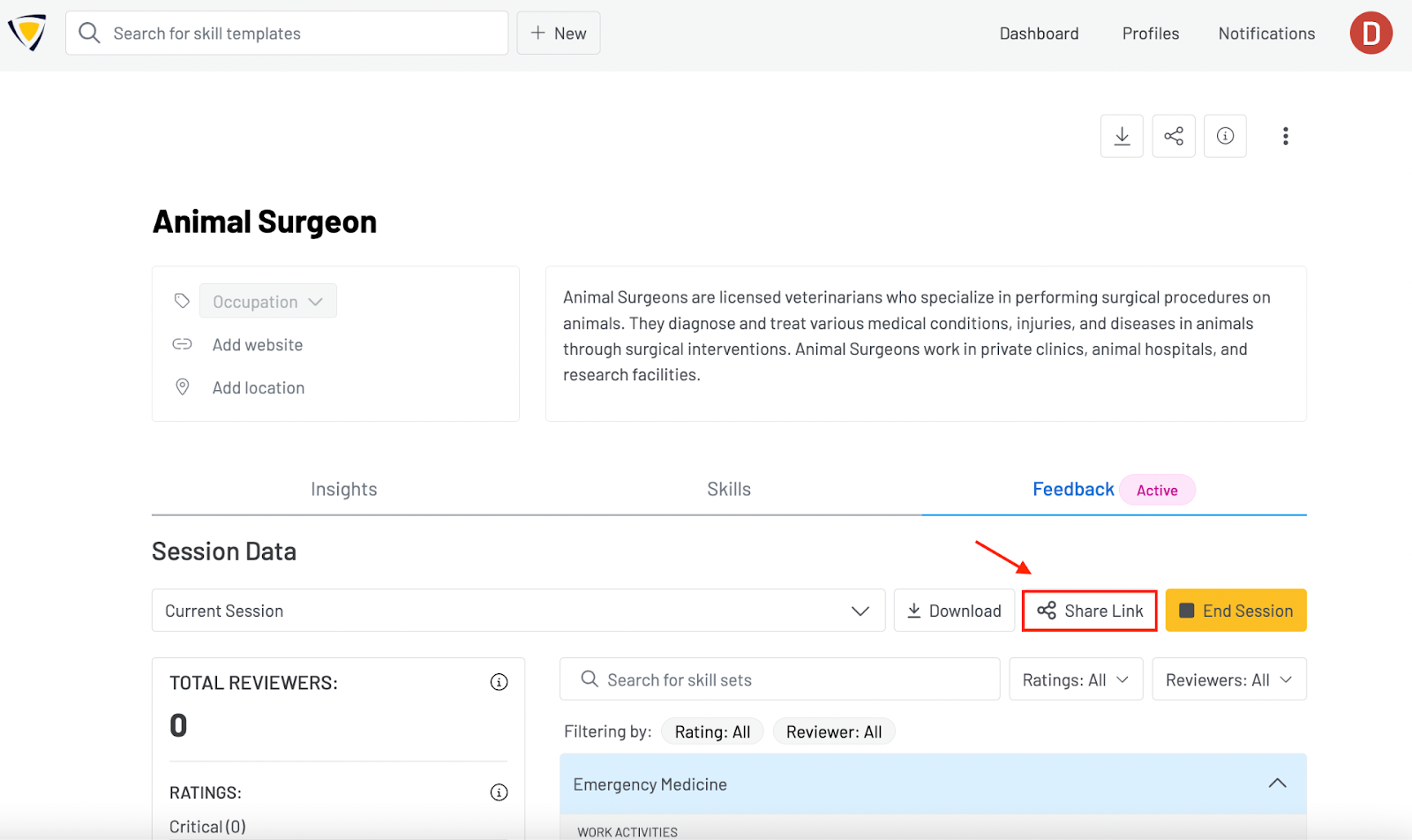
Step 6 – Ending a Feedback Session: To end a Feedback Session, select the “End Session” option. Two CSV files containing reviewer information and the data from the session reviews can be downloaded for your reference. Any deselected skill types at the start of the session will show up as “Skipped” in the CSV file.

For more information on how to navigate the feedback session, please visit Providing Feedback.
*Note: The profile owner cannot edit the profile while the Feedback Session is active. *
Updated 1/15/2026, 12:30 PM CST