
Providing Feedback
How to guide for providing feedback on a profile in SkillsEngine.

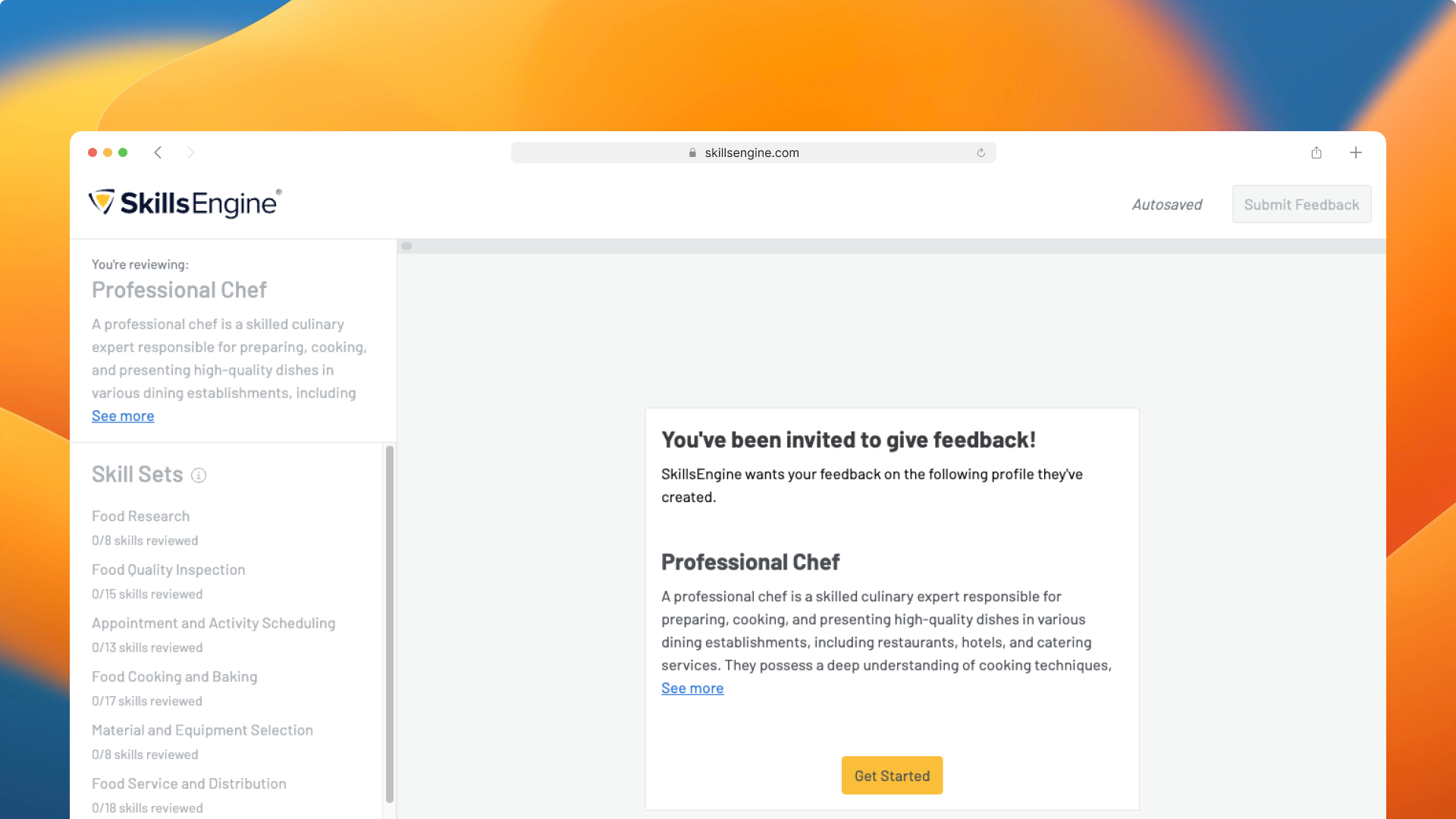
The SkillsEngine Feedback tool allows profile owners to send out surveys to determine the criticality of or proficiency needed for the skills in their profiles. This document provides an overview for how to complete and submit one of these surveys.
To begin feedback on a profile you have been invited to review, click on the link provided by the profile owner. If you are not already logged into SkillsEngine, you will be prompted to sign-in or create a free account before you can enter the feedback session.
To create an account, you'll need to either enter your email address and create a password or register using a Google account.
Note: This step is required in order to protect the security and integrity of our data library.
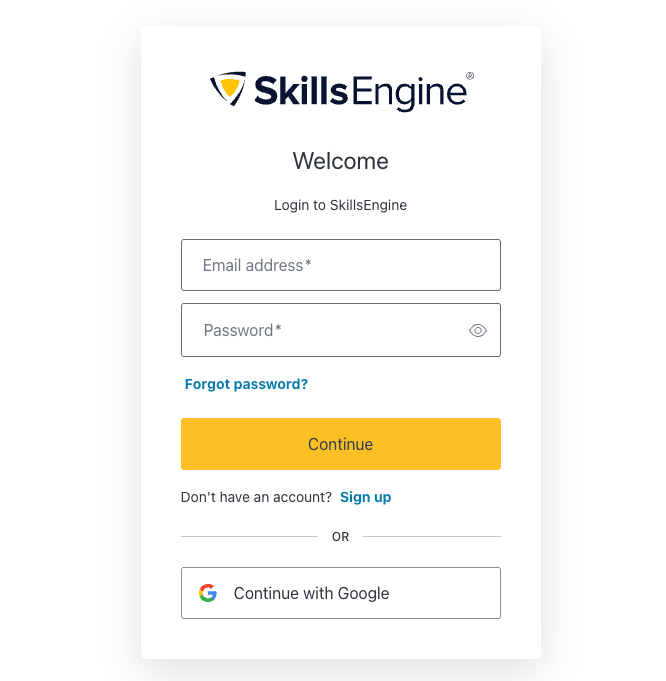
Once you have signed into your account and verified your email, follow these steps to progress through the review process:
Step 1: When you enter the validation session via the shared link, you'll see topline information for the profile you are validating on the left side of the page. This information includes the profile's title, description, and the skill sets under review with the total number of skills within each.
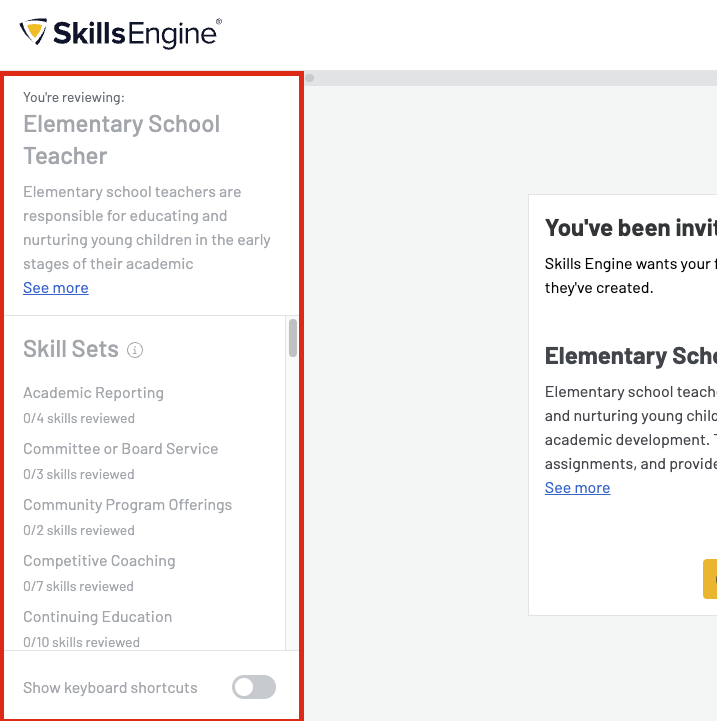
Step 2: Click on the yellow “Get Started” button to begin the session.
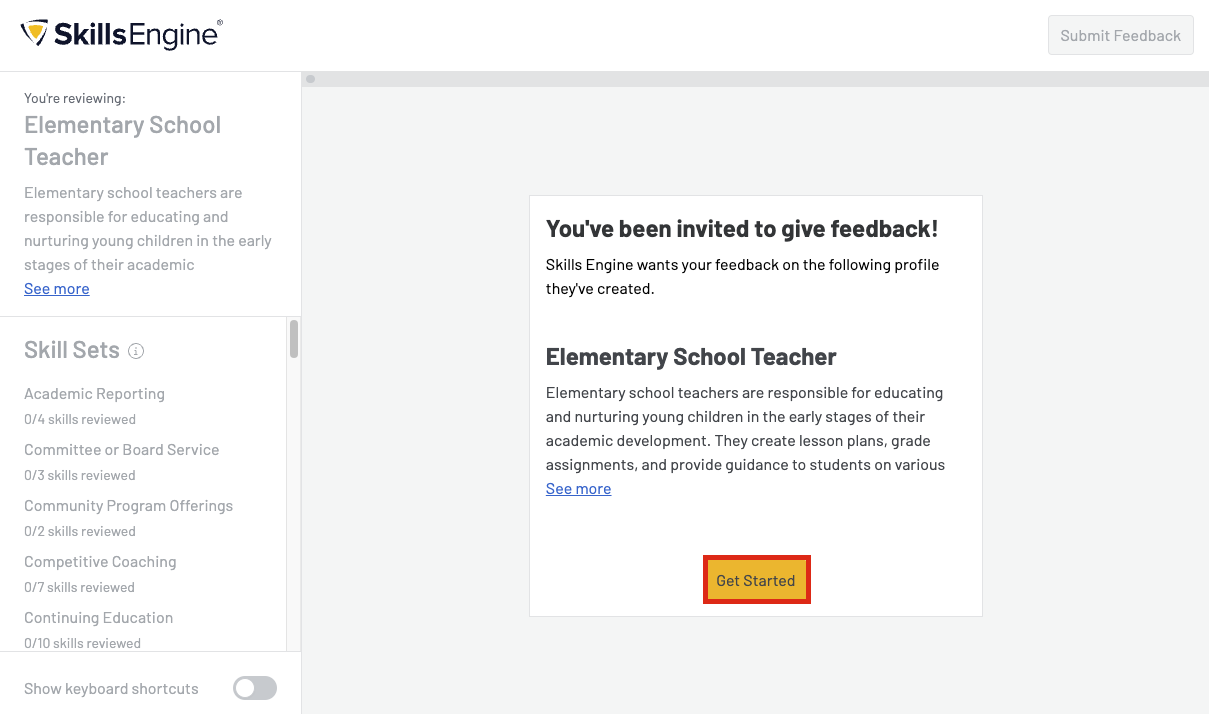
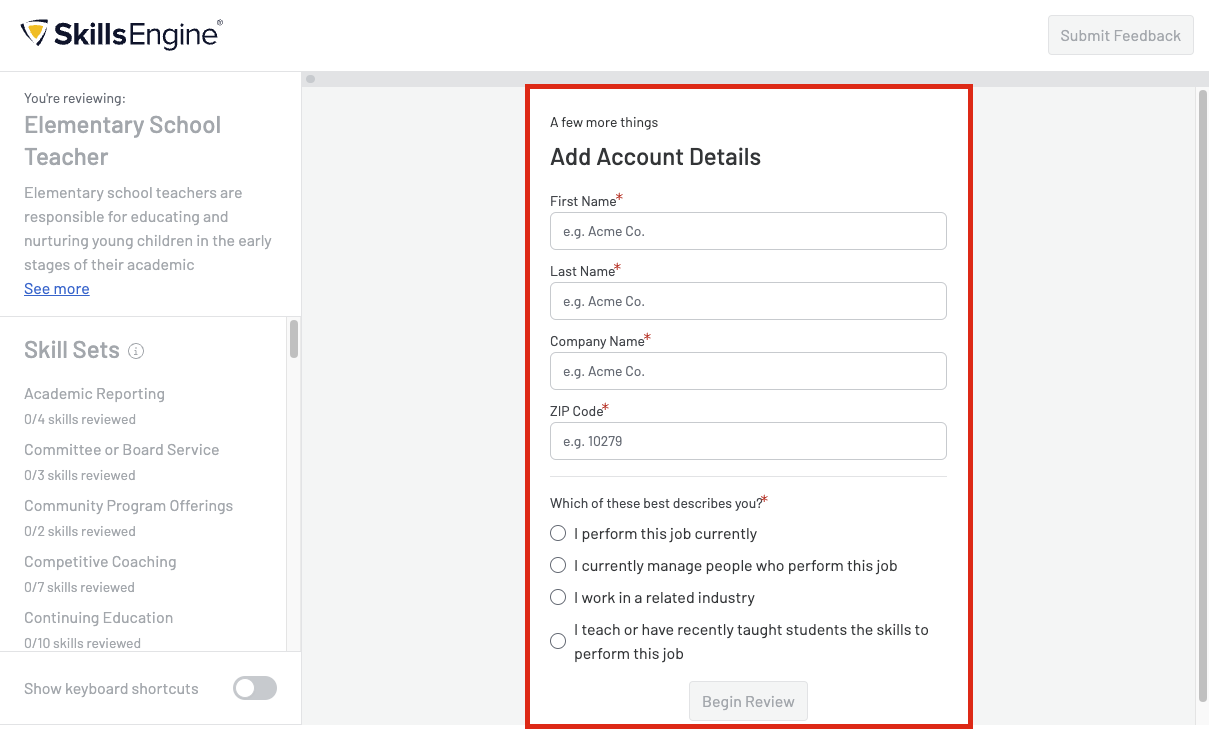
Step 3: You will be prompted to enter your first and last name, company name, and zip code. You will also be required to indicate your role as a reviewer of this profile. This information will be used to help the profile owner better understand and analyze the review data. To start the review, click the yellow “Get Started” button.
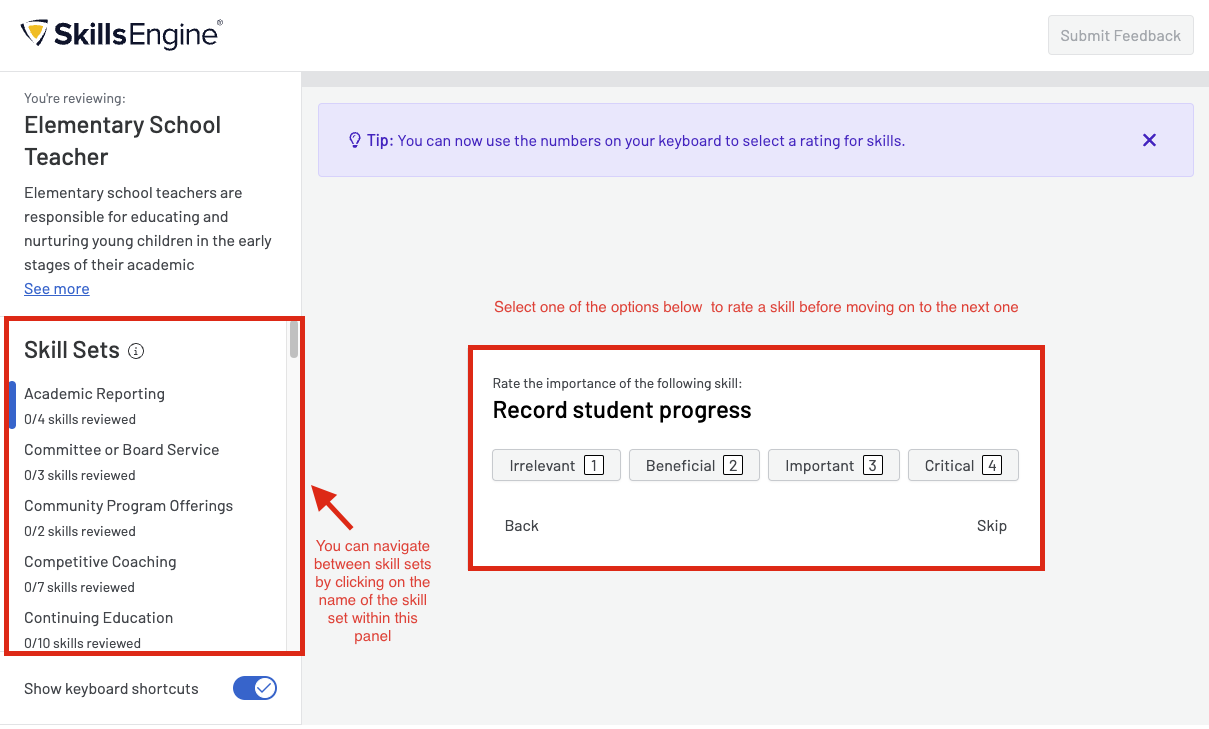
Step 4: For each skill, rate its importance in the profile and skill set as Irrelevant, Beneficial, Important, or Critical or use the “Skip” button to move past the skill without rating it. Click on the show keyboard shortcuts toggle to reveal numerical shortcuts for each of the ratings described above. Click on the skill sets listed in the left panel to jump to a different section of the review.
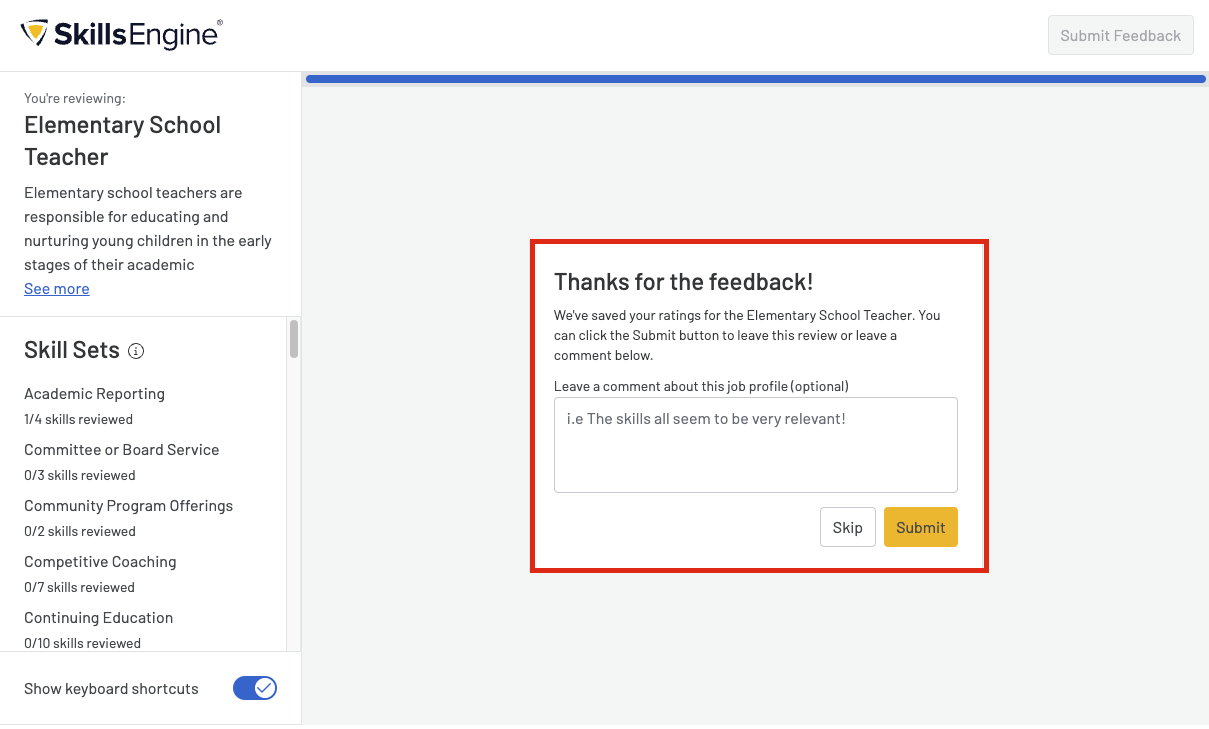
Step 5: Once you have finished providing feedback, you may leave additional comments or click the “Submit” button to leave the review.
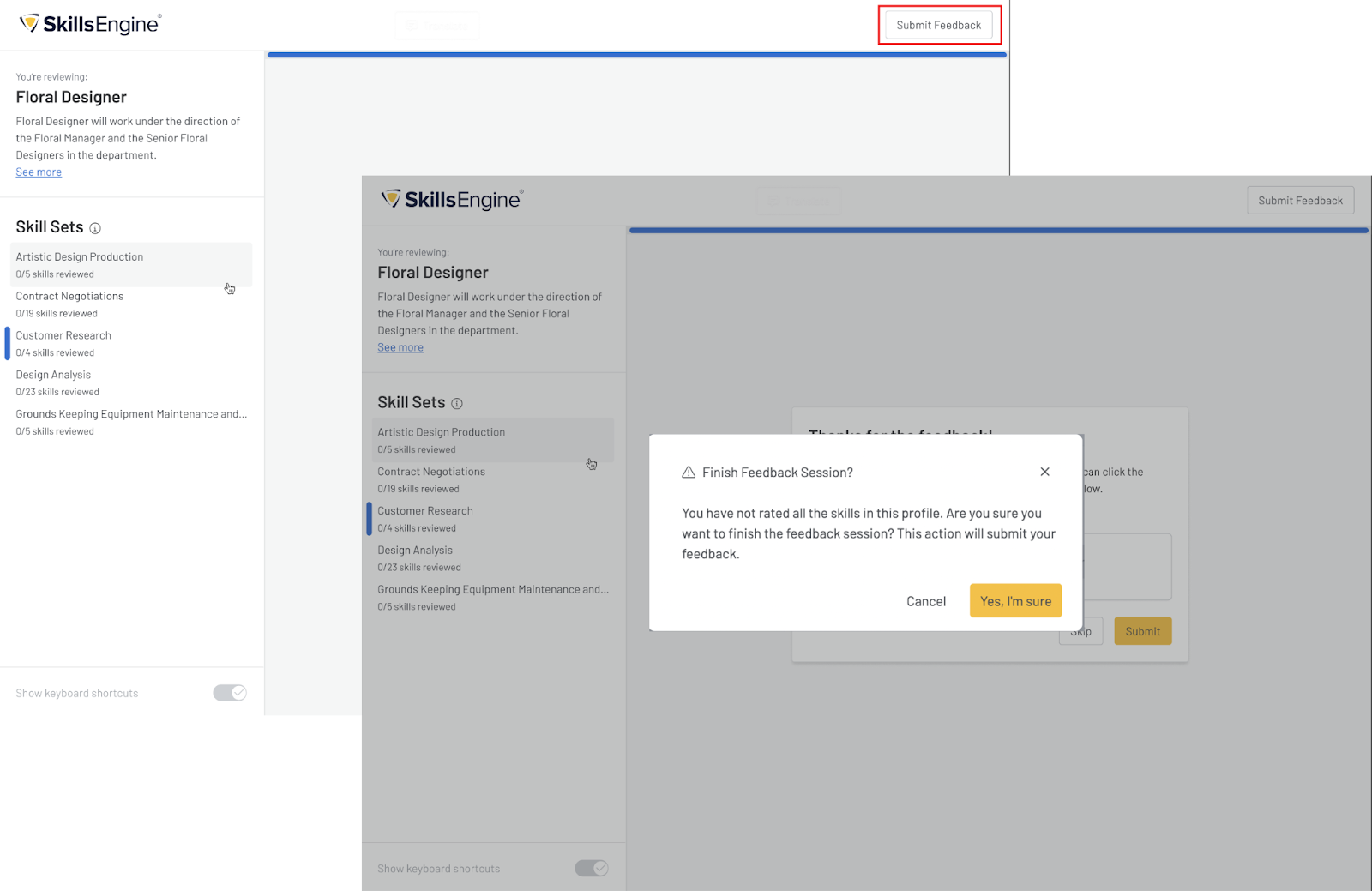
Exiting the Session: If at any point you would like to exit the session, click “Submit Feedback” in the upper right hand corner. Once you confirm that you want to end the session, you will be redirected to the SkillsEngine home page.
Revisiting the Session: Users are able to revisit a feedback session survey to continue providing feedback or update their existing responses as long as (1) they have not yet submitted their feedback and (2) the survey is still active.
- Once a user has hit “Yes, I’m sure” in the modal shown above, their responses are considered final and they will no longer be able to access the survey.
- The owner(s) of a feedback session can end the survey session whenever they would like.
Note: A profile owner or editor cannot edit a profile while a Feedback Session is active.